Setting Up Your FlutterFlow Project
Author:

Gokul Shivappa
Reading Time: 15 minutes
Introduction
Starting a new FlutterFlow project? Don't just dive into building screens. A proper setup saves you hours of rework and debugging later.
Here's my proven step-by-step approach to setting up any FlutterFlow project the right way.
Table of Contents
Step 1: Create the Project
Step 2: Connect Firebase
Step 3: Enable Authentication
Step 4: Set Up Your Theme Colors
Step 5: Configure Typography
Step 6: Add Your Assets
Step 7: Import Custom Icons (Optional)
Step 8: Create Your Folder Structure
Step 9: Set Naming Conventions
Setup Checklist
Why This Matters
Wrapping Up
Watch the Full Process
This tutorial is based on a clip from my Custom Chat App live stream series. In the video, I demonstrate this entire workflow while building a chat app—but the process works for any FlutterFlow project.
Step 1: Create the Project
Go to FlutterFlow and click "Create New Project"
Name your project using lowercase with underscores (e.g.,
custom_chat_app)Choose your starting template or start blank
Keep the name simple and descriptive. You'll see this name everywhere—in Firebase, app stores, and your codebase.
Step 2: Connect Firebase
Firebase handles your backend—authentication, database, and storage. Connect it early to avoid issues later.
Option A: Create from FlutterFlow (Easiest)
Go to Settings → Firebase
Click "Create Project"
Connect your Google account
FlutterFlow automatically creates and connects a Firebase project
Option B: Connect Existing Firebase Project
Go to your Firebase Console
Copy your Project ID
In FlutterFlow, go to Settings → Firebase
Paste the Project ID
Add your company/bundle name
Enable platforms you need (iOS, Android, Web)
Click "Connect"
Important: After connecting, always click "Generate Config Files" to sync everything properly.
Step 3: Enable Authentication
While in Firebase settings:
Enable Authentication
Set up User Collection (this stores user data in Firestore)
Choose your initial page (usually login or splash screen)
Choose your logged-in page (usually home or dashboard)
Pro tip: Get this right from the start. Changing authentication setup later requires refactoring multiple pages.
[IMG: Screenshot of authentication settings]
Step 4: Set Up Your Theme Colors
This step is crucial. Define all your colors upfront in the theme section to maintain consistency.
Go to Theme Settings → Colors and set up:
Primary – Your main brand color
Secondary – Supporting brand color
Tertiary – Accent color
Success – Green for success states
Error – Red for error messages
Warning – Yellow/orange for warnings
Info – Blue for informational messages
Background – Main background color
Surface – Card/container backgrounds
Border – Default border color
Divider – Line separators
Primary Text – Main text color
Secondary Text – Muted text color
Why this matters: If you hardcode colors throughout your app, switching to dark mode or changing your brand color becomes a nightmare. Use theme colors everywhere for easy maintenance.
Step 5: Configure Typography
Set your font styles in the theme section:
Choose your primary font family (or upload a custom font)
Define text styles for headings (H1, H2, H3)
Define body text styles
Set consistent sizes (I recommend 14px or 16px for body text)
Tip: Keep font sizes consistent across your app. Don't use 13px somewhere and 15px elsewhere. Pick standard sizes like 12, 14, 16, 18, 20, 24, 32 and stick to them.
Step 6: Add Your Assets
Go to Settings → App Assets and add:
Launcher Icon – Your app icon (1024x1024 recommended)
Splash Screen – What users see when the app loads
Error Image – Fallback for broken images
Empty State Images – For empty lists, no results, etc.
Upload these early. You'll reference them throughout development and it's easier to have them ready from the start.
Step 7: Import Custom Icons (Optional)
FlutterFlow's default icons are basic. If you need custom icons:
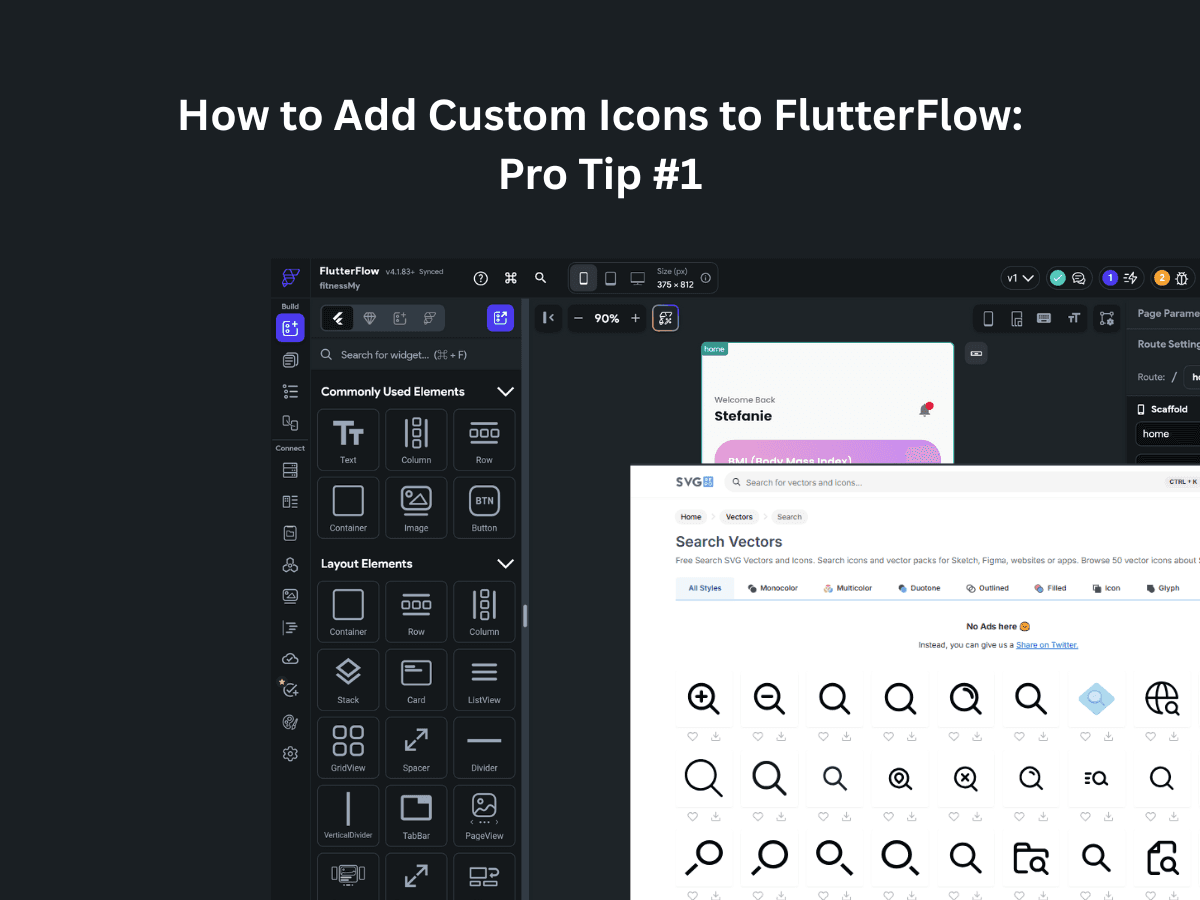
Get your icons as SVGs (from svgrepo.com or your designer)
Convert them to a font file using icomoon.app
Enable "Generate class for Flutter" in IcoMoon settings
Download and extract the ZIP file
In FlutterFlow, go to Theme Settings → Icons → Add Icons
Upload the .ttf file and .dart file
Now you can use your custom icons anywhere in the app, just like Material Icons.
Step 8: Create Your Folder Structure
Before building screens, organize your components for scalability.
Create these folders in your Components section:
shared – Reusable components (buttons, inputs, cards)
layouts – Headers, footers, navigation bars
modals – Popups and bottom sheets
This keeps your project clean and maintainable as it grows. You'll thank yourself when you have 50+ components.
Step 9: Set Naming Conventions
Decide on naming conventions early and stick to them:
Pages: snake_case (e.g.,
login_page,user_profile)Components: snake_case (e.g.,
input_field,primary_button)Parameters: camelCase (e.g.,
hintText,initialValue)Data Types: snake_case (e.g.,
user_data,chat_message)
Consistency makes your project easier to navigate, debug, and collaborate on with other developers.
Setup Checklist
Before you start building, verify you've completed:
✓ Project created with proper naming
✓ Firebase connected
✓ Config files generated
✓ Authentication enabled
✓ Theme colors defined
✓ Typography configured
✓ Launcher icon added
✓ Splash screen configured
✓ Custom icons imported (if needed)
✓ Folder structure created
Why This Matters
I've seen countless developers skip setup and jump straight into building screens. They end up with:
Hardcoded colors scattered everywhere
Inconsistent fonts and sizes
No reusable components
Messy, unorganized folder structure
Hours of tedious rework when changes are needed
Spend 30 minutes on proper setup now. Save hours of frustration and technical debt later.
Wrapping Up
A well-set-up project is easier to build, easier to maintain, and easier to hand off to other developers or clients.
Take the time to do it right from the start. Your future self (and your teammates) will thank you.