How to Add Custom Icons to FlutterFlow: Pro Tip #1
Author:

Gokul Shivappa
Reading time: 15 minutes
Introduction
FlutterFlow comes with a solid icon library out of the box. But if you've ever scrolled through those default icons looking for something specific, you know the limitation—they're functional but generic.
When you're building an app that needs to feel unique and polished, custom icons make all the difference.
In this guide, I'll walk you through my exact workflow for adding custom icons to any FlutterFlow project. It takes about 10-15 minutes and uses three free tools.
Table of Contents
Why Bother with Custom Icons?
The Three Tools You'll Need
Step 1: Get Your Icons
Step 2: Create a Font File with IcoMoon
Step 3: Import to FlutterFlow
Quick Tips from Experience
Wrapping Up
Watch the Full Process
This tutorial is based on a clip from my Custom Chat App live stream series. In the video, I demonstrate this entire workflow while building a chat app—but the process works for any FlutterFlow project.
Why Bother with Custom Icons?
FlutterFlow's native icon set works well for prototypes and internal tools. But production apps have different needs:
Brand consistency – Your icons should match your design system and color palette
Professional polish – Custom icons elevate the entire user experience
Unique functionality – You'll often need icons for features that don't exist in the default set
The difference is noticeable. Users may not consciously realize it, but custom icons signal that an app is thoughtfully designed.
The Three Tools You'll Need
You don't need expensive design software or paid icon packs. This entire workflow uses three free web tools:
svgrepo.com – A massive library of free, open-source SVG icons
vectormaker.co – Converts PNG images to SVG format when needed
icomoon.app – The key tool that packages your SVGs into a font file FlutterFlow can read
All three are browser-based, so no downloads or installations required.
Step 1: Get Your Icons
Option A: Download from SVG Repo
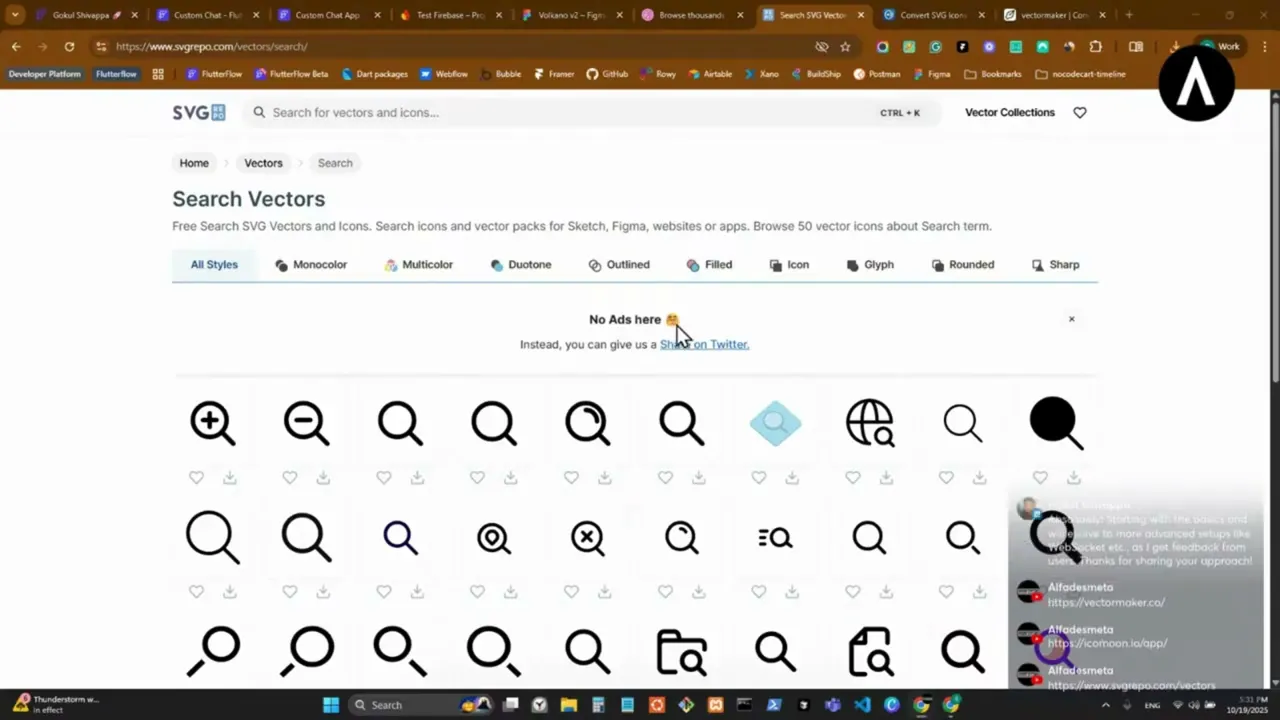
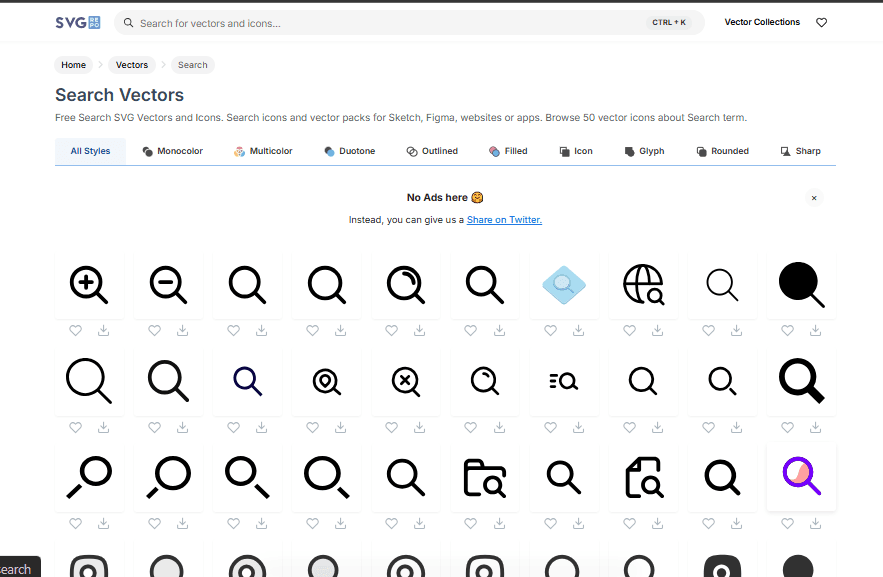
SVG Repo is my starting point for most icon needs. The selection is huge and the quality is consistently good.
Head to svgrepo.com
Use the search bar to find your icon (try terms like "search", "send", "microphone")
Click on the icon you like
Download the SVG file
Critical tip: Stick to single-color icons. Multi-color or gradient icons will cause import errors in FlutterFlow. When browsing, look for solid, monochrome designs.
Option B: Convert PNG to SVG
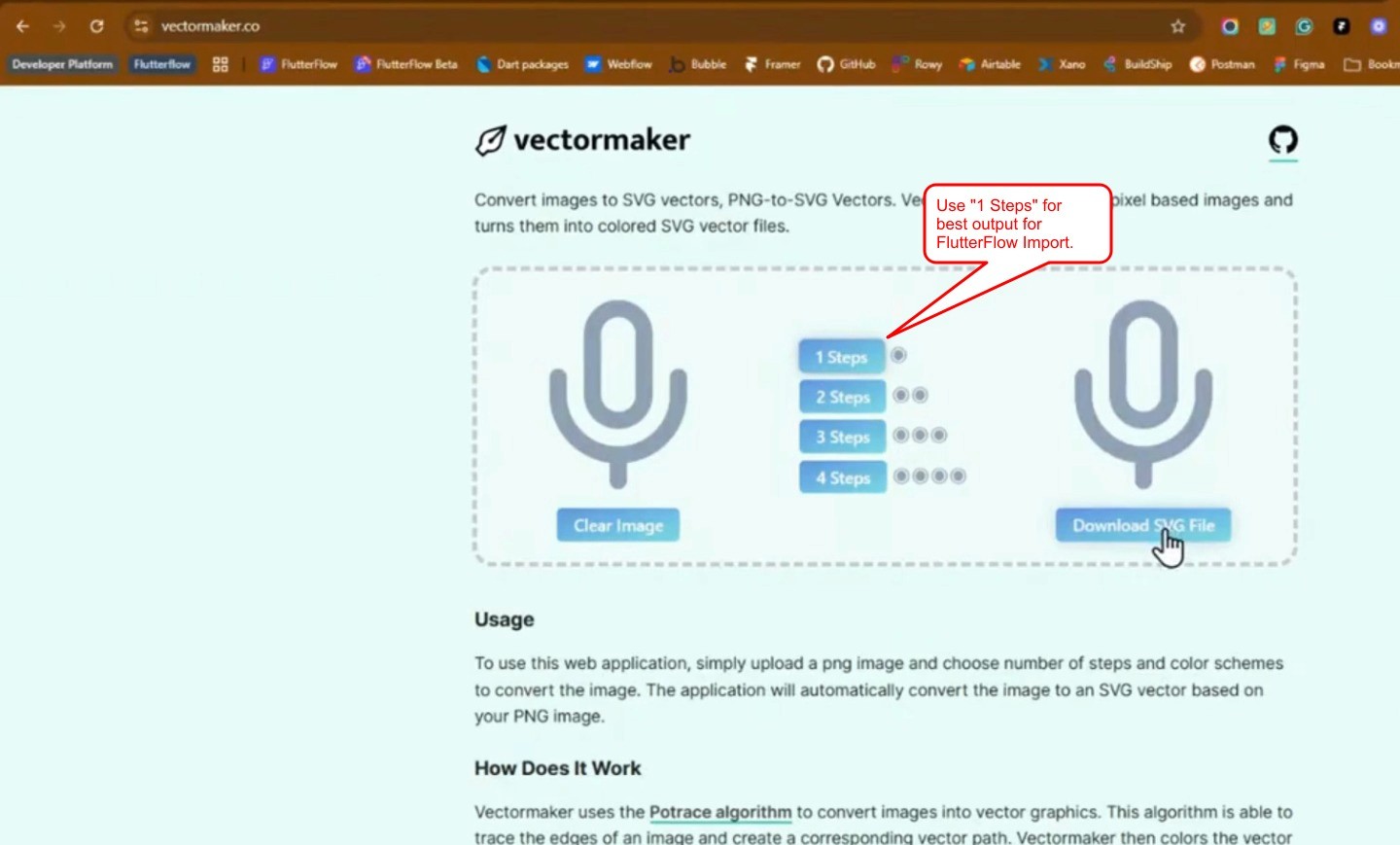
Got a PNG icon from a designer or found one you love? VectorMaker can convert it to the SVG format you need.
Go to vectormaker.co
Upload your PNG file
The tool automatically detects colors in your image
Choose single color mode (this is important for FlutterFlow compatibility)
Download the converted SVG
Heads up: VectorMaker processes one icon at a time. If you're converting a dozen icons, set aside a few minutes. But the results are worth it.
Step 2: Create a Font File with IcoMoon
Here's where everything comes together. IcoMoon takes your individual SVG files and packages them into a single font file that FlutterFlow can import and use like any native icon.
Go to icomoon.app and click IcoMoon App button
Click Import Icons, select your SVG files
Select all the icons you want to include
Click Generate Font
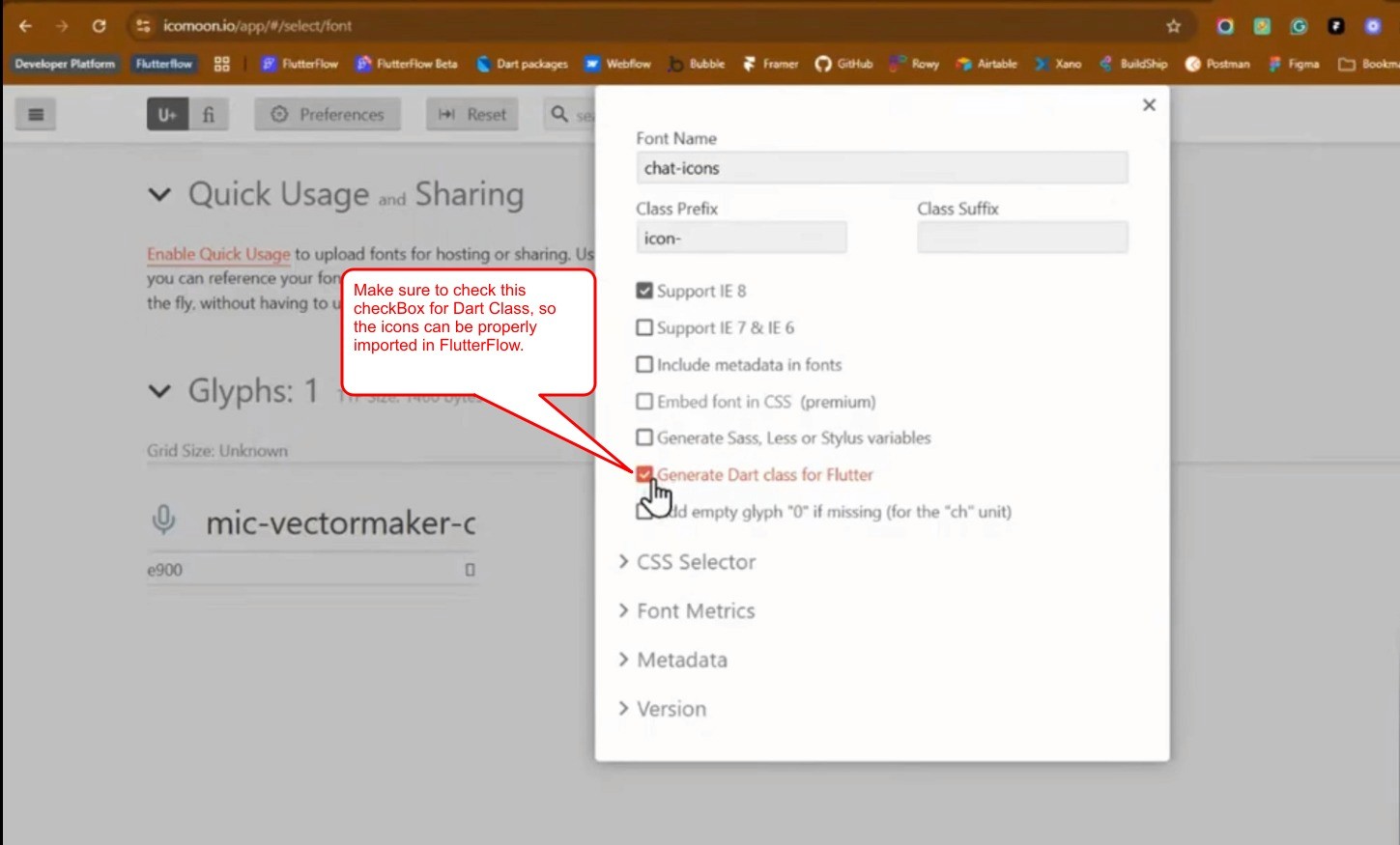
On the new screen, click Settings gear icon
Name your icon set (e.g., "chat_icons") and check "Generate class for Flutter"— this is critical!
Click Download
IcoMoon will give you a ZIP file containing your font file and the Dart class FlutterFlow needs to recognize it.
Step 3: Import to FlutterFlow
Now the easy part—getting your new icon font into FlutterFlow.
Unzip the file you just downloaded from IcoMoon
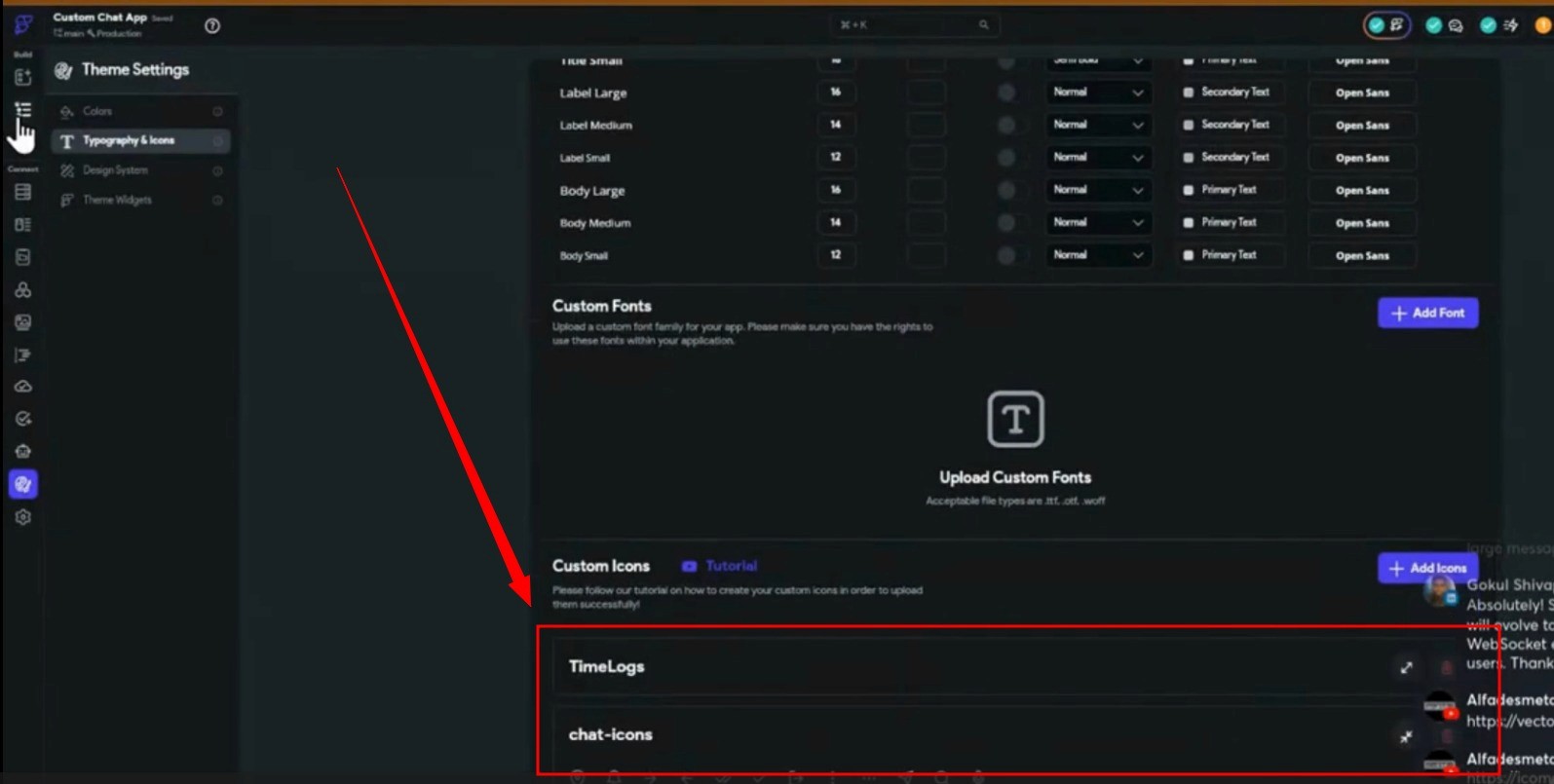
In FlutterFlow, go to Settings > Design System > Icons
Click Add Icons
Click Upload Icon File
Browse to your extracted folder
First, select the .ttf file from the "fonts" subfolder
FlutterFlow will prompt you for a second file—now select the .dart file from the main folder
Done! Your custom icons are now available throughout your project
You'll find them in the icon picker alongside FlutterFlow's default icons, but clearly labeled with your custom set name.
Quick Tips from Experience
After doing this dozens of times for client projects, here's what I've learned:
Mono-color is non-negotiable. Multi-color SVGs fail during import more often than not. If you love a multi-color icon, see if the designer offers a single-color version.
Not every SVG cooperates. Even simple, single-color icons sometimes break. If an icon won't import cleanly, don't waste time troubleshooting—just find a similar alternative on SVG Repo.
Check IcoMoon's library first. Before importing custom icons, browse IcoMoon's built-in collection. They have thousands of icons, and you might find exactly what you need already optimized for Flutter.
Use descriptive names. When you're managing 30+ custom icons, clear naming saves headaches. "mic_outline" beats "icon_23" every time.
Wrapping Up
Custom icons are one of those small details that create a big impression. They're the difference between an app that looks like it came from a template and one that feels professionally crafted.
The entire workflow—from finding icons to importing them into FlutterFlow—takes 10-15 minutes once you've done it a few times. And you only need to set it up once per project.
Bookmark these three tools:
svgrepo.com – Icon library
vectormaker.co – PNG to SVG converter
icomoon.app – Font file generator
As your app grows and you need additional icons, just repeat the process and upload a new font file. FlutterFlow handles multiple custom icon sets without any conflicts.